A wireless mouse is the one desk tool you touch for hours every day, yet most people buy theirs in minutes. Knowing how to choose a wireless mouse that actually fits your hand, your work, and your devices can mean the difference between end-of-day wrist ache and effortless all-day control. Wireless models have closed the gap with wired ones on latency and reliability, and today’s best options add multi-device pairing, quiet clicks, and weeks-long battery life. This guide walks you through the five decisions that matter most — shape and grip, ergonomics, sensor and DPI, connectivity, and battery life — so you can pick a mouse you’ll still love a year from now.
Quick answer: The right wireless mouse fits your hand size and grip style, tracks accurately at your preferred sensitivity, and connects reliably to all your devices. For most desk workers, a comfortable ergonomic shape with an adjustable sensor (800–4000 DPI), Bluetooth plus a 2.4 GHz receiver, and a USB-C rechargeable battery covers every need. Gamers and creative pros should prioritize high-DPI sensors and low-latency receivers instead.
How to Choose a Wireless Mouse: Start With Fit
Fit matters more than any specification. A mouse can have a superb sensor and still feel wrong if the shape fights your hand.
- Measure your hand: place a ruler from your wrist crease to the tip of your middle finger. Under 17 cm is small, 17–19.5 cm is medium, over 19.5 cm is large.
- As a rule of thumb, the mouse body should be about 60% of your hand length, so your palm rests naturally without over-stretching.
- Try to match product dimensions to your measurement — a mouse that is too small forces a cramped claw grip; one that is too large forces you to drag it with your fingertips.
Your grip style decides which shapes work:
- Palm grip: your whole hand rests on the mouse. Choose a larger, higher-arched body that supports the palm.
- Claw grip: your palm touches lightly while fingers arch. Choose a medium, contoured mouse with a defined hump.
- Fingertip grip: only your fingertips touch. Choose a smaller, flatter, lightweight mouse.
Ergonomics: Vertical vs. Conventional Shapes
A conventional mouse keeps your forearm pronated — palm facing down — for hours. Over long days, that posture is a common source of wrist discomfort, which is why vertical and angled mice exist.
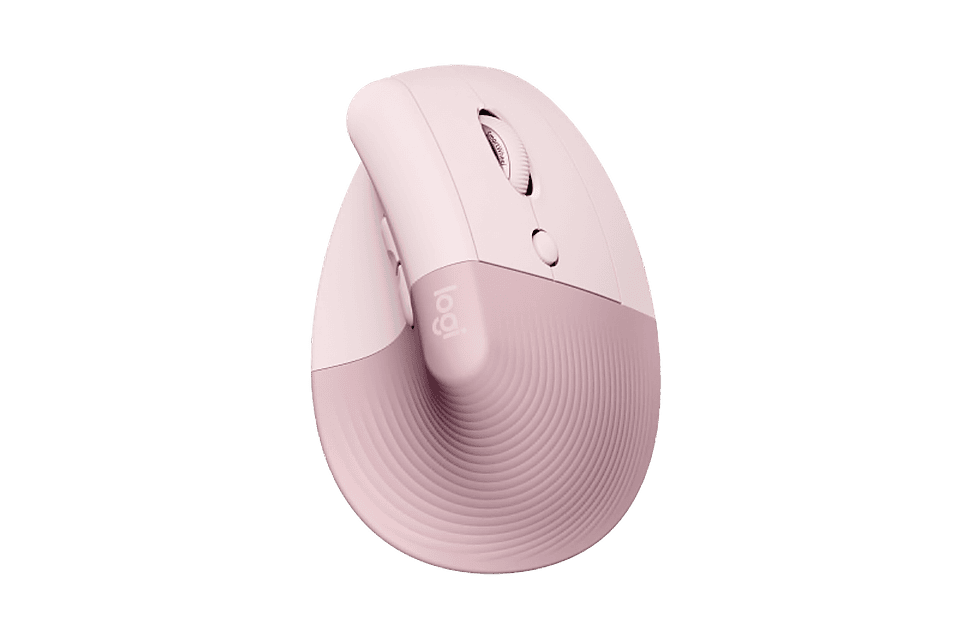
Who benefits from a vertical mouse
A vertical mouse holds your hand in a natural “handshake” position, reducing forearm rotation. It suits people who already feel wrist strain, work 8+ hours at a desk, or want to change the posture that a conventional mouse forces.
The adjustment period is real
Most people need about one to two weeks to adapt. Set your sensitivity to 800–1200 DPI during the transition so you move the mouse with your arm instead of flicking from the wrist, and keep your regular mouse nearby for the first few days. Precision returns by week two for most users.
Wireless Mouse Sensors and DPI: What the Numbers Mean
DPI (dots per inch) measures how far the cursor moves for each inch you move the mouse. Higher DPI means faster cursor movement — not inherently better accuracy.
- For office work, web browsing, and spreadsheets, 800–1600 DPI is the sweet spot for most people.
- For large or multiple high-resolution monitors, 2000–4000 DPI lets you cross the screen without lifting the mouse.
- Adjustable DPI with a dedicated switch button is more useful than a huge maximum number, because you can slow down for precise work and speed up for navigation.
- If you work on glass desks, look for a sensor rated to track on glass — many standard optical sensors struggle there.
- For gaming, also check the polling rate (how often the mouse reports its position); 1000 Hz is standard and fine for most players.
Connectivity: Bluetooth vs. 2.4 GHz Receiver
Both are wireless, but they behave differently.
- Bluetooth: no dongle needed, ideal for laptops with limited ports. Slightly higher latency and occasional wake-up delay on some systems.
- 2.4 GHz USB receiver: plug-and-play, generally lower latency and a steadier connection. Occupies a USB port (adapters exist for USB-C-only laptops).
- Best of both: many modern mice include Bluetooth plus a proprietary receiver and can pair with up to three devices, switching between them with a button — perfect for a laptop, desktop, and tablet setup.
If you switch between devices during the day, multi-device pairing is the single most convenient feature you can get.
Battery Life, Charging, and Extras Worth Paying For
- Rechargeable vs. disposable: USB-C rechargeable batteries now dominate and typically last weeks per charge. Replaceable AAs still have one advantage — you can swap in fresh batteries anywhere, which matters when traveling.
- Quiet clicks: a genuine quality-of-life upgrade for shared offices, libraries, and late-night work.
- Scroll wheel: a notched wheel suits precise document work; a free-spinning or electromagnetic wheel (like Logitech’s MagSpeed) flies through long pages and spreadsheets.
- Side buttons: two thumb buttons for back/forward navigation are useful for almost everyone; more programmable buttons matter mainly for creative software and games.
- Companion software: check that the mouse’s customization app supports your OS, especially on macOS where some features are limited.
Our Picks
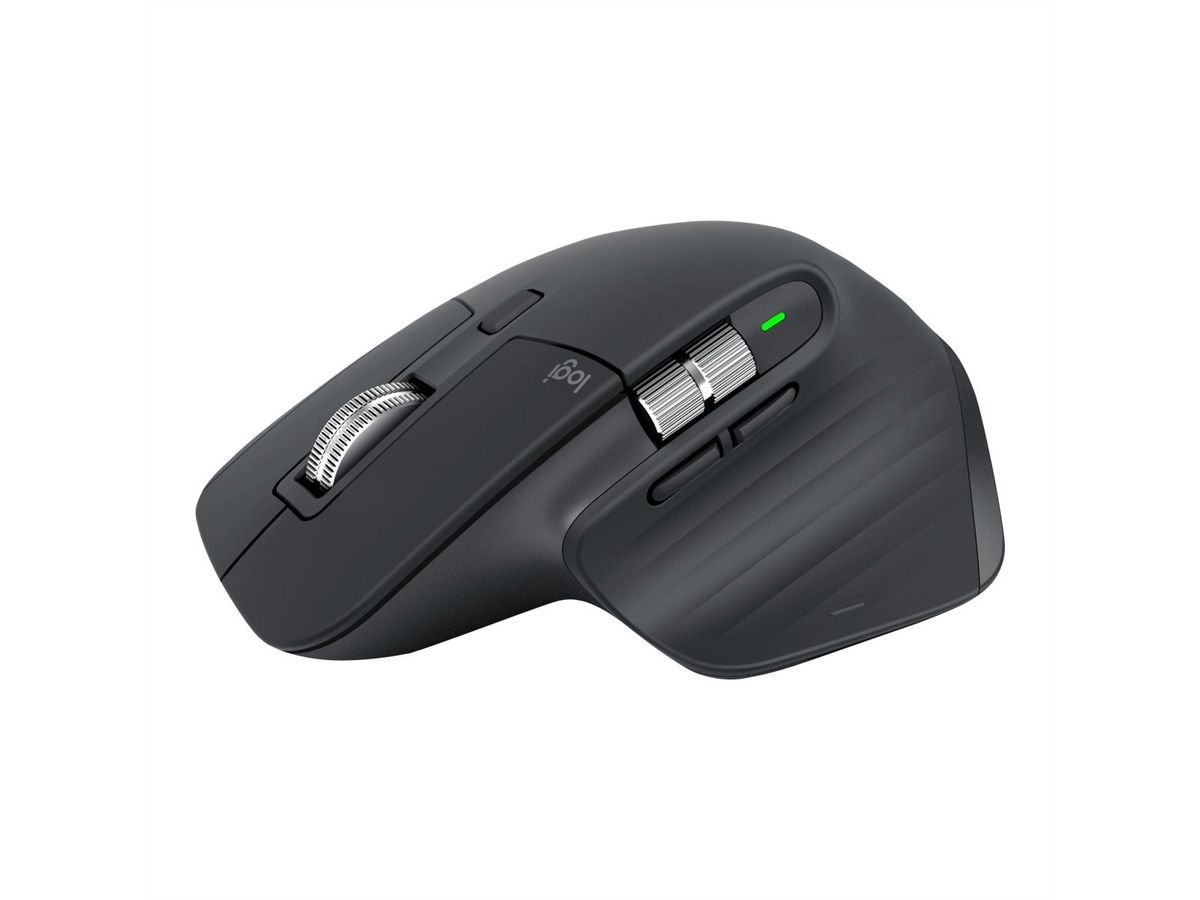
- Logitech MX Master 3S — An 8K-DPI precision mouse with quiet clicks and a MagSpeed scroll wheel that flies through long documents; pairs with up to three devices.
- Logitech Lift — A 57-degree vertical ergonomic mouse that keeps your wrist in a natural handshake position; a strong pick for all-day comfort.
Pair your mouse with a comfortable typing setup — our guide on How to Choose the Right Mechanical Keyboard covers switches, layouts, and noise levels.
Frequently Asked Questions
Is a wireless mouse as good as a wired one?
For office and general use, yes — modern wireless mice match wired models on accuracy, and latency differences are imperceptible outside competitive gaming. Competitive gamers may still prefer a wired or high-polling-rate wireless gaming mouse.
What DPI should I use for office work?
Start at 800–1200 DPI. Lower sensitivity encourages whole-arm movement, which is easier on the wrist, and you can always raise it if you find yourself lifting the mouse too often.
How long does a wireless mouse battery last?
Most USB-C rechargeable models last several weeks to a few months per charge with typical office use. Turning the mouse off when traveling and lowering the polling rate can stretch it further.
Are vertical mice hard to get used to?
There is a learning curve of about one to two weeks, during which your speed and precision may dip. Starting at a lower DPI and keeping your old mouse as a backup for the first few days makes the transition much smoother.
As an Amazon Associate I earn from qualifying purchases.