
A mechanical keyboard can be one of the most satisfying upgrades you make to your desk setup — whether you write for hours, code all day, or just want typing that feels crisp and deliberate instead of mushy. The catch is that learning how to choose a mechanical keyboard is confusing at first: product pages throw around terms like “hot-swappable,” “gasket mount,” and “QMK/VIA,” and it is hard to tell which ones actually matter for how a board feels and works. This guide cuts through the jargon and explains what genuinely affects comfort, sound, and performance — so you can pick a keyboard you will still love a year from now.
Quick answer: Most first-time buyers do best with a 75% or tenkeyless (TKL) layout, hot-swappable switches so you can change the feel later, and either tactile or linear switches depending on whether you like feedback or smoothness. Pick a wireless model with 2.4 GHz or Bluetooth if you want a clean desk, and do not pay extra for features you will never use — sound, feel, and layout decide 90% of your satisfaction.
Layout: pick a size that fits your desk and workflow
Layout is the first and most visible decision. It determines how much desk space your keyboard takes and which keys you give up for that space.
Common layout sizes
- Full-size (100%): Every key, including the numpad. Great for data entry and spreadsheets, but it eats desk space and pushes your mouse far to the right.
- Tenkeyless (TKL): Drops the numpad while keeping everything else. A sweet spot for most desk users — you keep dedicated function and arrow keys in a much smaller footprint.
- 75%: Nearly the same as TKL but packed tighter, usually keeping function and arrow keys. The most popular layout with keyboard enthusiasts right now.
- 65%: Drops the function row too, keeping arrows and a few navigation keys. Great for minimal desks if you rarely use F-keys.
- 60%: Just letters, numbers, and modifiers — no arrows or dedicated navigation keys. Tiny and portable, but expect a learning curve with layer shortcuts.
If you type numbers all day, a full-size or TKL board (or a separate numpad) saves real time. If you game, a TKL or 75% board pulls your mouse closer and frees up space for big mouse movements. For most people working at a desk, 75% or TKL is the comfortable middle ground: you lose almost nothing and gain a lot of space.

Switches: the feel and sound of your keyboard
Switches are the mechanisms under each keycap, and they define how your keyboard feels and sounds. This is where mechanical keyboards win over membrane boards — and where your personal preference matters most.
Linear switches
Linear switches press straight down with no tactile bump and no click. They feel smooth and consistent, and they are the quietest option. Gamers tend to love them for rapid key presses, and office workers appreciate the smooth, non-disruptive typing. Popular examples include Cherry MX Red and Gateron Yellow.
Tactile switches
Tactile switches give you a small bump midway through the press, so you feel exactly when the key registers — without a loud click. This feedback is why many typists and writers prefer them: you get confirmation without noise. Cherry MX Brown is the classic example, and Gateron Brown is its smoother budget cousin.
Clicky switches
Clicky switches add an audible click to the tactile bump. They feel and sound wonderful if you type alone, but they are the loudest option by far. In a shared office or on calls, they will annoy everyone within earshot. Cherry MX Blue is the reference standard here.
If you are buying your first board and are unsure, tactile switches are the safest middle ground — noticeable feedback without the noise. And here is the key move: choose a hot-swappable board. Hot-swap sockets let you pull switches out and press new ones in with a simple tool, no soldering required. It means your switch choice is not permanent: you can try tactile switches this month and swap to linear next year for the price of a switch set.
Keycaps: the part your fingers actually touch
Keycaps get less attention than switches, but your fingertips spend all day on them. Two materials dominate the market:
- PBT: Denser, textured, and resistant to the shiny worn look that develops over time. Double-shot PBT keycaps have legends (the printed letters) that never fade, because the lettering is a separate layer of plastic molded through the cap. This is the upgrade worth paying for.
- ABS: Smoother and lighter, common on cheaper boards. ABS shines and wears faster, and the letters are usually printed or laser-etched on the surface, so they can fade with heavy use.
Keycap profile — the shape and height of the caps — also matters. OEM and Cherry profiles are the standard sculpted shapes most people find comfortable. Low-profile keycaps look sleek on slim boards but feel closer to a laptop keyboard. If you find a board you like but hate the caps, that is another thing hot-swap-adjacent customization solves: keycap sets are widely sold and easy to change.
Mounting, build quality, and sound
How a keyboard is assembled affects both how it feels under your fingers and how it sounds to your ears. Two terms show up constantly in product listings, and they are worth understanding.
A gasket-mounted board suspends the plate and circuit board on soft silicone or foam gaskets instead of screwing them rigidly to the case. The result is a softer, slightly bouncy typing feel and a deeper, less harsh sound. Tray-mount and top-mount designs are more rigid and can sound pingy or hollow by comparison. Gasket mounting has become the standard for good-feeling boards at reasonable prices.
Build materials matter too. Aluminum cases feel premium, stay put on the desk, and produce a deeper sound. Plastic cases are lighter, more affordable, and perfectly fine — a well-designed plastic board beats a badly designed metal one. Check for included sound-dampening foam or silicone layers inside the case: they reduce hollow echo and are one of the cheapest ways manufacturers improve how a board sounds.
Finally, do not overlook stabilizers — the wire mechanisms under wide keys like the spacebar, Enter, and Shift. Cheap, dry stabilizers rattle and ruin an otherwise great board. Pre-lubricated stabilizers, or boards praised in reviews for their out-of-the-box sound, save you a fiddly upgrade job later.
Connectivity and software: wireless options and QMK/VIA
Your keyboard needs to talk to your computer, and you now have three main options — often all on the same board.
- Wired (USB-C): The most reliable connection with zero latency. Required for competitive gaming and the simplest possible setup.
- 2.4 GHz wireless: Uses a small USB dongle and delivers near-wired responsiveness. The best option for gaming without a cable.
- Bluetooth: Connects to multiple devices (usually up to three) and switches between them with a keypress — ideal if you type on a laptop, tablet, and desktop.
Tri-mode boards that offer all three are common now and cost little more than wired-only models. Battery life on wireless boards typically runs from days to weeks of normal use, depending on backlighting — turn off RGB and most boards last dramatically longer.
On the software side, look for QMK/VIA support. QMK is open-source keyboard firmware, and VIA is the web-based tool that lets you remap any key, build macros, and set up custom layers without installing sketchy third-party software. It works in your browser and saves your layout directly to the board. Even if you never remap a key, QMK/VIA support is a sign of an enthusiast-grade product with a long shelf life of community support.
Once your keyboard is sorted, the rest of your desk setup matters too — if you like background music while you type, see our guide on how to choose the right smart speaker.
Our picks
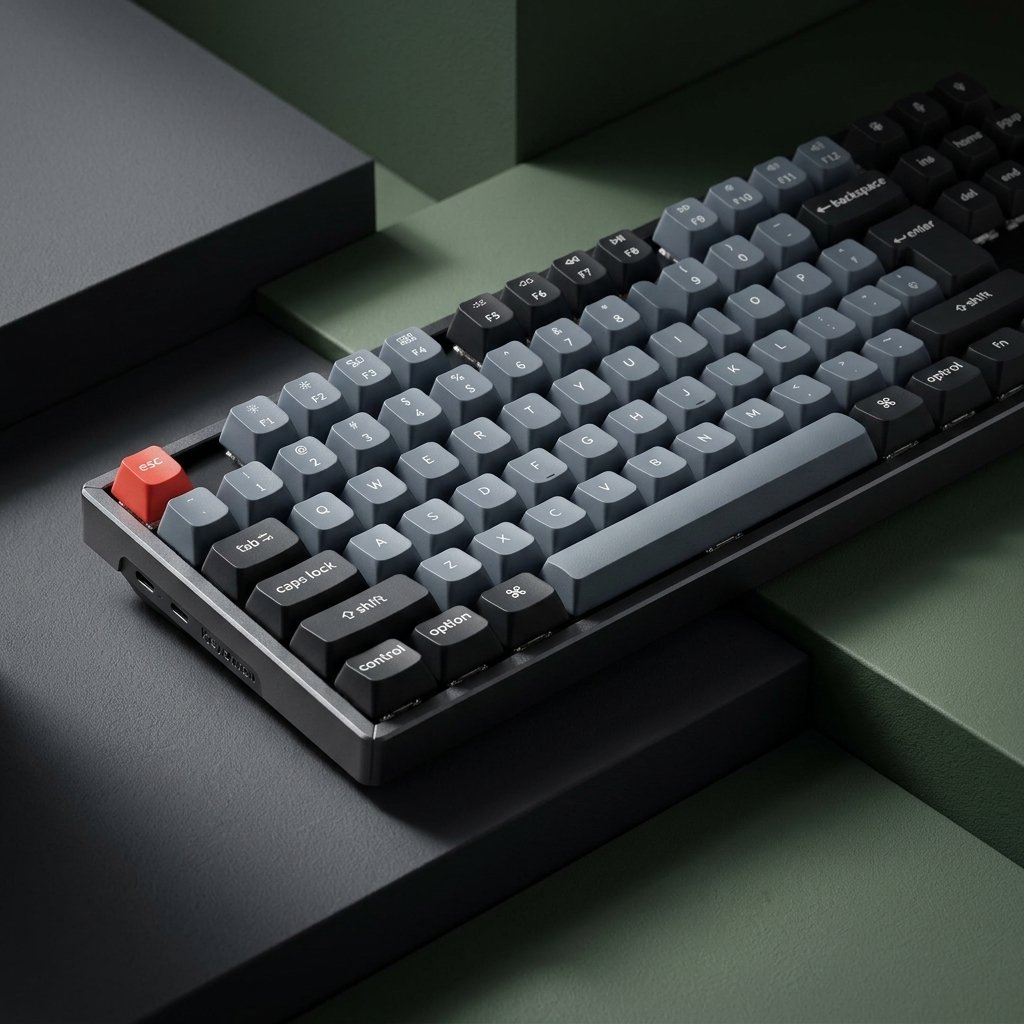
- Keychron K8 Pro QMK/VIA Wireless Mechanical Keyboard — a hot-swappable 75% wireless board with QMK/VIA support, making it a great first mechanical keyboard.
- Logitech MX Master 3S Wireless Mouse — a precise desk companion that pairs well with a compact keyboard for a clean, comfortable setup.
Mechanical keyboard FAQs
Are mechanical keyboards better for typing?
Most typists find them more comfortable and accurate than membrane keyboards, because each key registers with distinct feedback and consistent actuation. The real advantage is customization: you can choose switches, keycaps, and layouts that match exactly how you type, instead of accepting one fixed design.
What is the difference between hot-swappable and soldered keyboards?
Hot-swappable boards have sockets that let you pull switches out and press new ones in by hand. Soldered boards have switches permanently fixed to the circuit board, so changing the feel means desoldering every switch — a tedious job. For your first board, hot-swap is the safer choice because it lets you experiment.
How loud are mechanical keyboards?
It depends entirely on the switches and case. Linear and tactile switches with sound-dampening foam are office-friendly and quieter than most membrane keyboards. Clicky switches are deliberately loud — great for solo typing, terrible for shared spaces. If noise matters, skip clicky switches and look for boards marketed with gasket mounting and dampening.
Do I need QMK/VIA support?
Not strictly, but it is one of the best value signals in a keyboard. VIA lets you remap keys and create macros in a browser with no software install, and QMK firmware keeps getting community updates long after a manufacturer moves on. If two boards are otherwise equal, pick the one with QMK/VIA support.
As an Amazon Associate I earn from qualifying purchases.